<?xml version="1.0" encoding="utf-8"?>
<feed xmlns="http://www.w3.org/2005/Atom">
  <author>
    <name>jibing57</name>
  </author>
  <generator uri="https://hexo.io/">Hexo</generator>
  <id>https://www.jibing57.com/</id>
  <link href="https://www.jibing57.com/" rel="alternate"/>
  <link href="https://www.jibing57.com/atom.xml" rel="self"/>
  <rights>All rights reserved 2026, jibing57</rights>
  <subtitle>Recording, Sharing, TimeSaving -- 一切成本皆时间</subtitle>
  <title>Recording</title>
  <updated>2026-04-16T05:52:54.150Z</updated>
  <entry>
    <author>
      <name>jibing57</name>
    </author>
    <category term="Linux" scheme="https://www.jibing57.com/categories/Linux/"/>
    <category term="Aliyun" scheme="https://www.jibing57.com/tags/Aliyun/"/>
    <category term="Lets Encrypt" scheme="https://www.jibing57.com/tags/Lets-Encrypt/"/>
    <id>https://www.jibing57.com/2023/01/21/how-to-add-lets-encrypt-cert-to-aliyunLinux-17-1/</id>
    <link href="https://www.jibing57.com/2023/01/21/how-to-add-lets-encrypt-cert-to-aliyunLinux-17-1/"/>
    <published>2023-01-21T05:59:23.000Z</published>
    <summary>
      <![CDATA[<h3 id="背景"><a href="#背景" class="headerlink" title="背景"></a>背景</h3><p>有几台2019年开的阿里云服务器，当时系统选择了<code>Aliyun Linux 17.1 64位</code>,  因为Let’s Encrypt证书<code>DST-Root-CA-X3</code>过期的原因，访问Let’s Encrypt网站会报SSL错误。</p>
<figure class="highlight plaintext"><table><tr><td class="gutter"><pre><span class="line">1</span><br></pre></td><td class="code"><pre><span class="line">ERROR: cannot verify gems.ruby-china.com&#x27;s certificate, issued by ‘/C=US/O=Let&#x27;s Encrypt/CN=R3’:</span><br></pre></td></tr></table></figure>

<h3 id="过程"><a href="#过程" class="headerlink" title="过程"></a>过程</h3><p>如果是CentOS 7系统，直接有现成补丁，直接<code>yum update ca-certificates</code>就可以升级系统证书来应对该问题。</p>
<p>搜了一下，<code>Aliyun Linux 17.1</code>的系统说明，在阿里云官网上已经找不到了，现存的只有<code>Alibaba Cloud Linux 2</code>和<code>Alibaba Cloud Linux 3</code>。 只有在CSDN的<a href="https://blog.csdn.net/cpongo1/article/details/89546748">一篇文章</a>中找到了一些描述，说<code>Aliyun Linux 17.1</code>是兼容CentOS 7.2的。</p>
<p>在<code>Aliyun Linux 17.1</code>系统中，敲<code>yum update ca-certificates</code>，直接提示<code>No packages marked for update</code><br>敲<code>yum install ca-certificates</code>, 提示<code>Package ca-certificates-2015.2.6-73.4.al7.noarch already installed and latest version</code>。<br>官方yum源中的 ca-certificates 包居然还是2015.2.6的。</p>]]>
    </summary>
    <title>如何在aliyunLinux 17.1中添加Let's Encrpyt访问根证书</title>
    <updated>2026-04-16T05:52:54.150Z</updated>
  </entry>
  <entry>
    <author>
      <name>jibing57</name>
    </author>
    <category term="Mac" scheme="https://www.jibing57.com/categories/Mac/"/>
    <category term="Preview" scheme="https://www.jibing57.com/tags/Preview/"/>
    <category term="PDF" scheme="https://www.jibing57.com/tags/PDF/"/>
    <id>https://www.jibing57.com/2022/12/05/how-to-merge-pdf-file-by-preview-in-MacOS/</id>
    <link href="https://www.jibing57.com/2022/12/05/how-to-merge-pdf-file-by-preview-in-MacOS/"/>
    <published>2022-12-05T12:30:38.000Z</published>
    <summary>
      <![CDATA[<h3 id="合并多个pdf文件"><a href="#合并多个pdf文件" class="headerlink" title="合并多个pdf文件"></a>合并多个pdf文件</h3><p>转自苹果官网: <a href="https://support.apple.com/zh-cn/guide/preview/prvw43696/mac">在 Mac 上的“预览”中合并 PDF</a></p>
<p>将两个或多个 PDF 的全部内容或部分内容合并到单个 PDF。</p>
<p><strong>【警告】</strong>你对“预览”文稿所做的更改会自动存储。如果你想保留原始 PDF（除了新合并的 PDF 之外），请在合并前选取“文件”&gt;“复制”来为每个 PDF 创建一个副本。</p>
<p><img src="https://help.apple.com/assets/61E89BDE989FED37B56706DD/61E89BDF989FED37B56706E4/zh_CN/b09f783052ea7b9d008d3f2bd8ed20ee.png" alt="一个 PDF 的页面缩略图拷贝到另一个 PDF 的边栏。"></p>]]>
    </summary>
    <title>MacOS使用Preview合并PDF和图片到PDF中</title>
    <updated>2026-04-16T05:52:54.156Z</updated>
  </entry>
  <entry>
    <author>
      <name>jibing57</name>
    </author>
    <category term="Mac" scheme="https://www.jibing57.com/categories/Mac/"/>
    <category term="Preview" scheme="https://www.jibing57.com/tags/Preview/"/>
    <category term="图片处理" scheme="https://www.jibing57.com/tags/%E5%9B%BE%E7%89%87%E5%A4%84%E7%90%86/"/>
    <category term="转载" scheme="https://www.jibing57.com/tags/%E8%BD%AC%E8%BD%BD/"/>
    <id>https://www.jibing57.com/2022/10/29/how-to-combine-multiple-pictures-by-preview-in-MacOS/</id>
    <link href="https://www.jibing57.com/2022/10/29/how-to-combine-multiple-pictures-by-preview-in-MacOS/"/>
    <published>2022-10-29T09:10:11.000Z</published>
    <summary>
      <![CDATA[<p>以下文字转自: <a href="https://juejin.cn/post/6994300496664084487">无需第三方，使用Mac预览合并多张图片</a> 图片另外制作。</p>
<p>作者：路过mac<br>来源：稀土掘金</p>
<hr>
<p>在制作文章配图时，有时需要截取多层窗口的屏幕截图。</p>
<p>在这里，我会使用“预览”来完成这个操作。</p>
<ul>
<li>将需要合并的图片选中，用预览打开（假设三张图片为 1、2、3）。</li>
<li>由于在实际操作中，图 2 和图 3 所示窗口的位置会超出图 1 窗口，也就是会超出图1 的画布边缘，这样会导致 2 和 3 显示不完整，所以在合并图片之前需要先调整图 1 的画布大小。</li>
</ul>
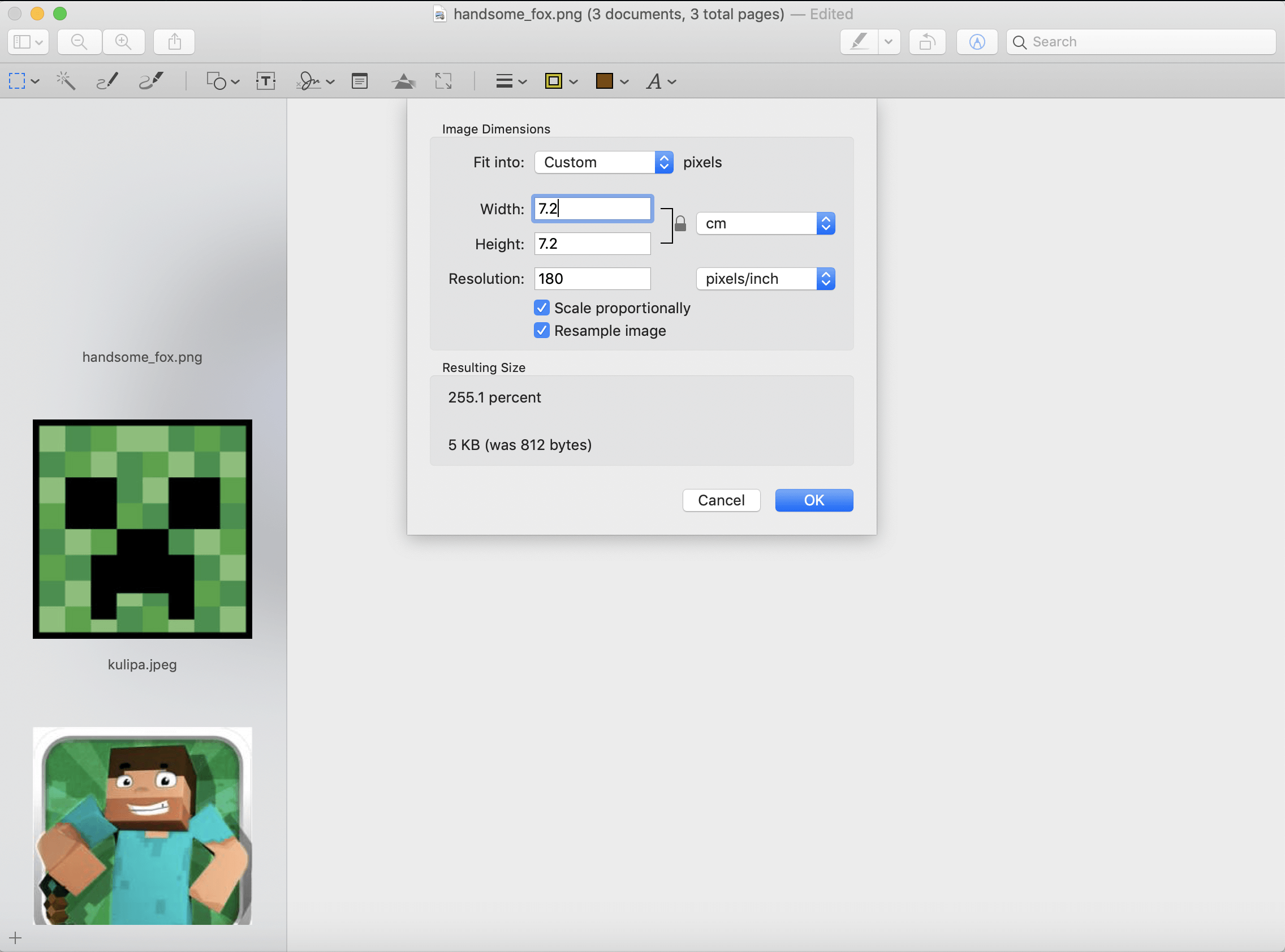
<p>在 1 的画布上用「Command+A」「Command+X」全选图片并剪切，然后通过「工具-调整大小」来调整画布尺寸，调整成功后用「Command+V」将图 1 粘贴上去。</p>
<p><img src="/images/Apple/preview_scale_size.png" alt="preview_scale_size"></p>]]>
    </summary>
    <title>【转载】使用Mac预览合并多张图片</title>
    <updated>2026-04-16T05:52:54.153Z</updated>
  </entry>
  <entry>
    <author>
      <name>jibing57</name>
    </author>
    <category term="Tools" scheme="https://www.jibing57.com/categories/Tools/"/>
    <category term="Jenkins" scheme="https://www.jibing57.com/tags/Jenkins/"/>
    <category term="Jenkins Plugins" scheme="https://www.jibing57.com/tags/Jenkins-Plugins/"/>
    <id>https://www.jibing57.com/2022/10/28/plugin-publish-over-ssh-of-jenkins/</id>
    <link href="https://www.jibing57.com/2022/10/28/plugin-publish-over-ssh-of-jenkins/"/>
    <published>2022-10-28T13:53:14.000Z</published>
    <summary>
      <![CDATA[<blockquote>
<p>本文插件介绍,插件安装和插件使用章节中大多数内容参考转自: <a href="https://cloud.tencent.com/developer/article/1688143">Jenkins常用插件Publish Over SSH</a></p>
</blockquote>
<h3 id="插件介绍"><a href="#插件介绍" class="headerlink" title="插件介绍"></a>插件介绍</h3><p>可以实现不同节点之间传递文件，比如A节点将代码编译打包好，然后通过ssh发送到目标节点上，配置相应的命令完成项目的部署，目标节点无需是是一个slave，只要A节点能够通过ssh连接到B节点即可。</p>
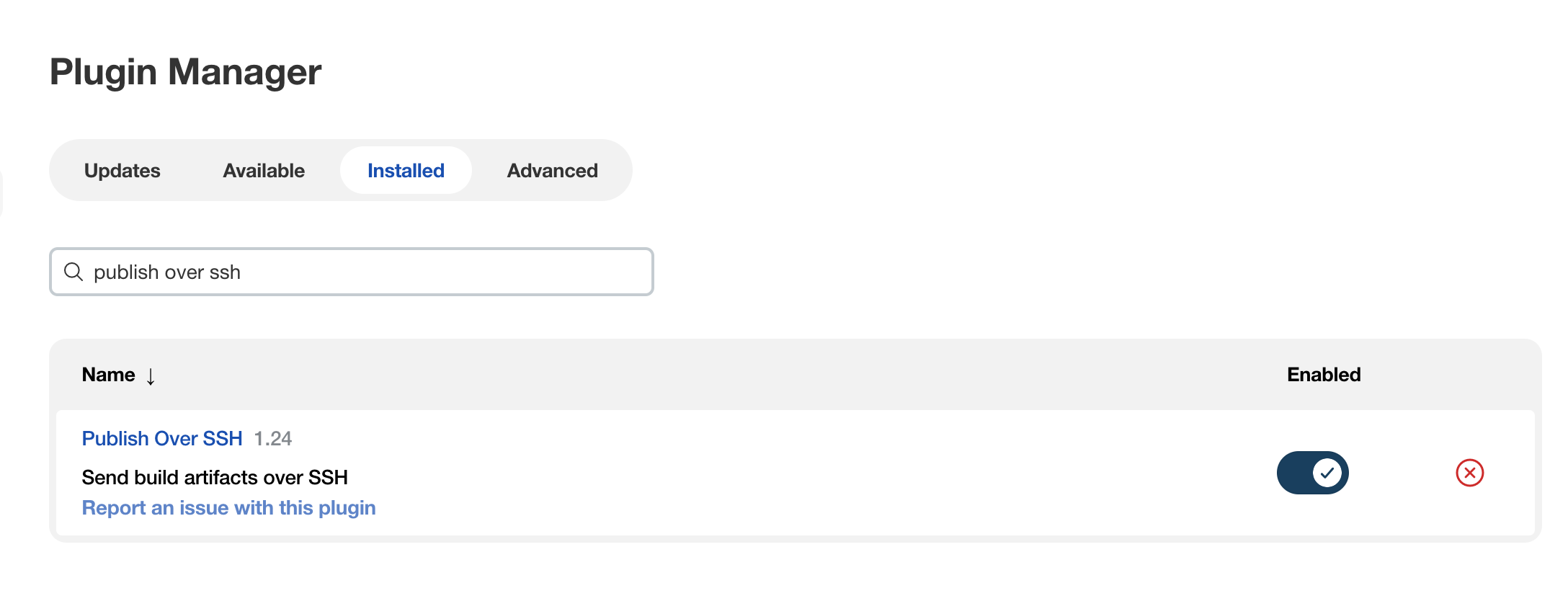
<h3 id="插件安装"><a href="#插件安装" class="headerlink" title="插件安装"></a>插件安装</h3><p>插件市场搜索<code>Publish Over SSH</code>，然后安装它</p>
<p><img src="/images/Jenkins/publish_over_ssh_plugin.png" alt="publish_over_ssh_plugin.png"></p>
<p>插件主页：<a href="https://plugins.jenkins.io/publish-over-ssh">https://plugins.jenkins.io/publish-over-ssh</a></p>
<h3 id="插件使用"><a href="#插件使用" class="headerlink" title="插件使用"></a>插件使用</h3><h4 id="配置远程主机"><a href="#配置远程主机" class="headerlink" title="配置远程主机"></a>配置远程主机</h4><ol>
<li>依次点击-“系统管理(Manage Jenkins)”-“系统配置(Configure System)”，找到”Publish over SSH”；</li>
<li>在”Passphrase”输入框中填写通用密码，也可以指定私钥路径,私钥可以使用路径也可以直接粘贴key的内容；</li>
<li>在”SSH Servers”处点击”新增按钮(Add)”，新增一个远程主机；</li>
<li>在”Name”输入框中填写这个远程主机的名称；</li>
<li>在”Hostname”输入框中填写IP地址，或者节点能够解析的主机名称；</li>
<li>在”Username”输入框中填写用于远程登录的用户名；</li>
<li>在”Remote Directory”输入框中填写远程主机存放文件的目录，这个目录必须已存在；</li>
<li>如果当前的远程主机密码不是第二步配置的通用密码，可以点击右下角的”高级”，在Password输入框中填写这个远程主机的密码；</li>
<li>点击”Test Configuration”测试配置，如果报错，根据错误提示进行相应的更改。</li>
</ol>]]>
    </summary>
    <title>Jenkins常用插件Publish Over SSH介绍</title>
    <updated>2026-04-16T05:52:54.165Z</updated>
  </entry>
  <entry>
    <author>
      <name>jibing57</name>
    </author>
    <category term="Tools" scheme="https://www.jibing57.com/categories/Tools/"/>
    <category term="JetBrains" scheme="https://www.jibing57.com/tags/JetBrains/"/>
    <category term="RubyMine" scheme="https://www.jibing57.com/tags/RubyMine/"/>
    <id>https://www.jibing57.com/2022/10/27/JetBrains-IDE-settings-tips/</id>
    <link href="https://www.jibing57.com/2022/10/27/JetBrains-IDE-settings-tips/"/>
    <published>2022-10-27T12:50:30.000Z</published>
    <summary>
      <![CDATA[<h3 id="RubyMine中设置全局搜索结果数"><a href="#RubyMine中设置全局搜索结果数" class="headerlink" title="RubyMine中设置全局搜索结果数"></a>RubyMine中设置全局搜索结果数</h3><p>默认情况下，RubyMine的“在文件中搜索”的搜索结果最多只显示100条。</p>
<p>可通过更改设置来显示更多的记录条数。</p>
<p>设置方法: </p>
<ul>
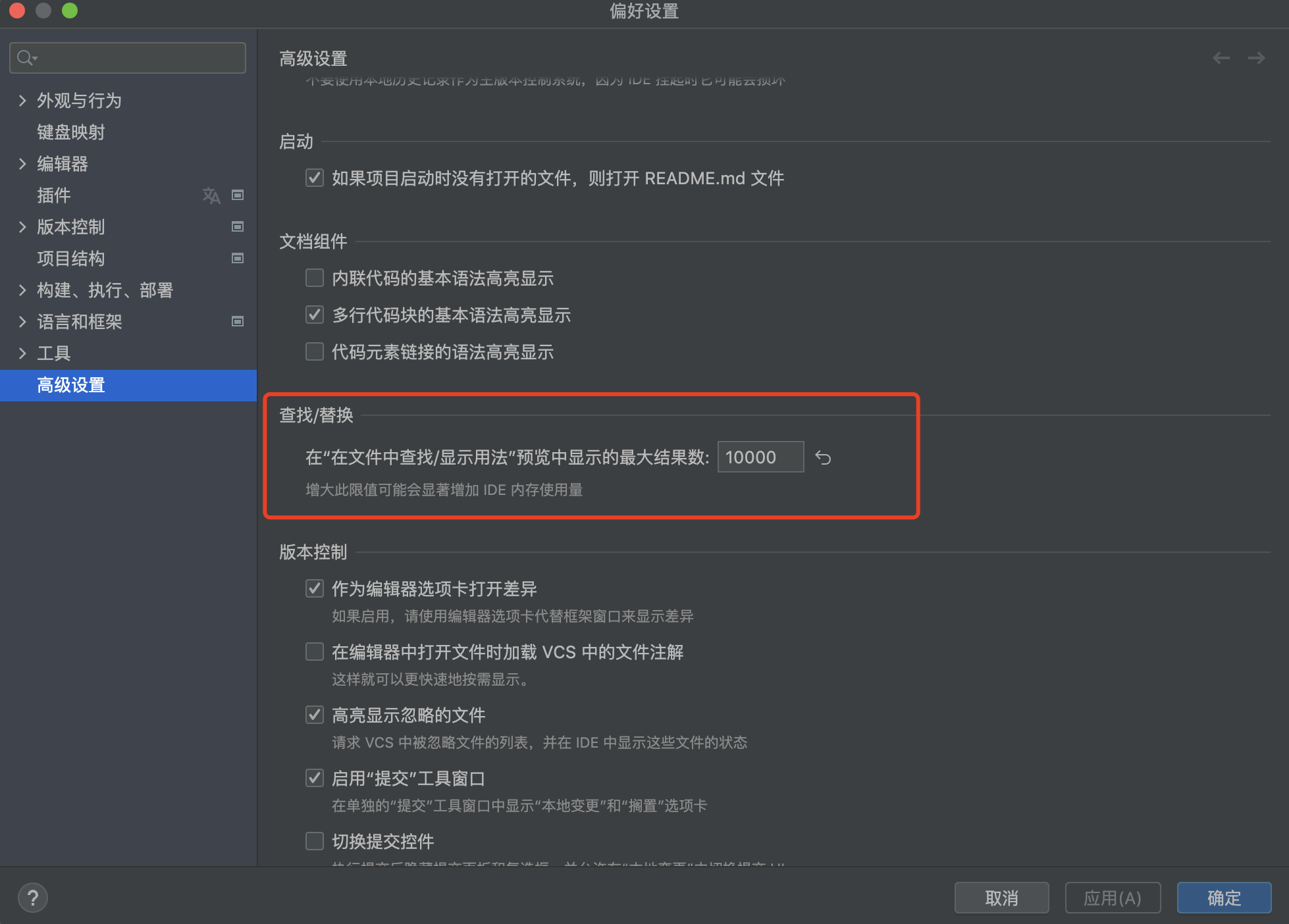
<li>英文:Settings (Preferences on macOS) | Advanced Settings | Maximum number of results to show in Find In Path&#x2F;Show Usages preview</li>
<li>中文: 设置(macOS下是Preferences) | 高级设置 | 查找&#x2F;替换 | 在”在文件中查找&#x2F;显示用法“预览中显示的最大结果数</li>
</ul>
<p>将对应的数值修改为100以上，比如1000。</p>
<p>有一个提示说:<code>修改这个限值可能会显著增加IDE内存使用量</code></p>
<p><img src="/images/IDE/max_search_num_setting_of_rubymine.png" alt="max_search_num_setting_of_rubymine.png"></p>
<p>参考自: <a href="https://intellij-support.jetbrains.com/hc/en-us/community/posts/360002679840/comments/4405432812050">Find in Path shows max 100 results</a></p>]]>
    </summary>
    <title>JetBrains IDE设置tips</title>
    <updated>2026-04-16T05:52:54.133Z</updated>
  </entry>
  <entry>
    <author>
      <name>jibing57</name>
    </author>
    <category term="Tools" scheme="https://www.jibing57.com/categories/Tools/"/>
    <category term="CentOS" scheme="https://www.jibing57.com/tags/CentOS/"/>
    <category term="Systemd" scheme="https://www.jibing57.com/tags/Systemd/"/>
    <id>https://www.jibing57.com/2022/10/26/how-to-see-log-of-systemd/</id>
    <link href="https://www.jibing57.com/2022/10/26/how-to-see-log-of-systemd/"/>
    <published>2022-10-26T13:59:10.000Z</published>
    <summary>
      <![CDATA[<h3 id="journalctl来查看systemd日志"><a href="#journalctl来查看systemd日志" class="headerlink" title="journalctl来查看systemd日志"></a>journalctl来查看systemd日志</h3><p>当我们使用systemd来运行service时，脚本中<code>echo</code>输出的内容不会显示在Terminal中，我们需要使用<code>systemctl status service-name</code>来查看service的日志。</p>
<p>但<code>systemctl status</code>输出的日志信息并不够详细，而且当<code>service</code>的脚本中运行了两个Process，日志比较多时，可能只够显示最后一个Process的日志。</p>
<p>我们可以使用<code>journalctl</code>来查看完整的使用systemctl启动的service的日志。几个典型的用法如下:</p>
<figure class="highlight plaintext"><table><tr><td class="gutter"><pre><span class="line">1</span><br><span class="line">2</span><br><span class="line">3</span><br><span class="line">4</span><br><span class="line">5</span><br><span class="line">6</span><br><span class="line">7</span><br><span class="line">8</span><br><span class="line">9</span><br><span class="line">10</span><br><span class="line">11</span><br><span class="line">12</span><br><span class="line">13</span><br><span class="line">14</span><br><span class="line">15</span><br><span class="line">16</span><br><span class="line">17</span><br><span class="line">18</span><br><span class="line">19</span><br><span class="line">20</span><br></pre></td><td class="code"><pre><span class="line"># 查看最近的systemctl服务日志, 多个服务混在一起的</span><br><span class="line">journalctl -f </span><br><span class="line"></span><br><span class="line"># 不分页显示日志</span><br><span class="line">journalctl --no-pager</span><br><span class="line"></span><br><span class="line"># 指定某个服务来显示日志</span><br><span class="line">journalctl -u service-name.service</span><br><span class="line"></span><br><span class="line"># 开机后某个服务的日志</span><br><span class="line">journalctl -u service-name.service -b</span><br><span class="line"></span><br><span class="line"># 显示从某个时间点开始的日志</span><br><span class="line">journalctl --since &quot;2018-08-30 14:10:10&quot;</span><br><span class="line"></span><br><span class="line"># 显示到某个时间点截止的日志</span><br><span class="line">journalctl --until &quot;2018-09-02 12:05:50&quot;</span><br><span class="line"></span><br><span class="line"># 开始和结束和合起来使用</span><br><span class="line">journalctl --since &quot;2018-08-30 14:10:10&quot; --until &quot;2018-09-02 12:05:50&quot;</span><br></pre></td></tr></table></figure>]]>
    </summary>
    <title>使用journalctl来查看systemd的日志</title>
    <updated>2026-04-16T05:52:54.157Z</updated>
  </entry>
  <entry>
    <author>
      <name>jibing57</name>
    </author>
    <category term="Tools" scheme="https://www.jibing57.com/categories/Tools/"/>
    <category term="CentOS" scheme="https://www.jibing57.com/tags/CentOS/"/>
    <category term="Jenkins" scheme="https://www.jibing57.com/tags/Jenkins/"/>
    <id>https://www.jibing57.com/2022/10/21/how-to-migrate-jenkins-data/</id>
    <link href="https://www.jibing57.com/2022/10/21/how-to-migrate-jenkins-data/"/>
    <published>2022-10-21T13:58:18.000Z</published>
    <summary>
      <![CDATA[<h3 id="背景"><a href="#背景" class="headerlink" title="背景"></a>背景</h3><p>服务器上运行jenkins的服务一直临时使用的是个人的账号，现在统一要求使用固定的发布账号来进行管理。因此需要将个人账号下的jenkins数据迁移到发布账号下。</p>
<p>一些基本信息:</p>
<ul>
<li><p>服务器系统: CentOS 7.x</p>
</li>
<li><p>原账号: carl.shen</p>
</li>
<li><p>新发布账号: deployer-jenkins</p>
</li>
<li><p>发布模式: 在官网手动下载的war包运行部署，不是yum方式。</p>
</li>
</ul>
<h3 id="准备"><a href="#准备" class="headerlink" title="准备"></a>准备</h3><p>jenkins的数据是通过自己目录下的xml来进行管理的，没有用到数据库。因此迁移时，只需要将对应的数据文件迁移到新账号指定的目录即可。</p>
<p>为了避免重新配置各个job，因此整个文件夹进行迁移是比较好的方法。</p>
<h3 id="迁移过程"><a href="#迁移过程" class="headerlink" title="迁移过程"></a>迁移过程</h3><h4 id="迁移步骤"><a href="#迁移步骤" class="headerlink" title="迁移步骤"></a>迁移步骤</h4><p>由于是war包运行的方式，因此所有的jenkins数据默认都保存在家目录的<code>~/.jenkins</code>目录下。因此迁移步骤如下:</p>
<ul>
<li><p>在旧账号中停止jenkins服务。</p>
</li>
<li><p>打包旧账号中的<code>~/.jenkins</code>的内容，拷贝到新账号的<code>~/.jenkins</code>目录中。</p>
</li>
<li><p>新账号中修改<code>~/.jenkins</code>的文件读写权限为新账号。</p>
</li>
<li><p>新账号中运行jenkins服务。</p>]]>
    </summary>
    <title>如何迁移jenkins数据</title>
    <updated>2026-04-16T05:52:54.156Z</updated>
  </entry>
  <entry>
    <author>
      <name>jibing57</name>
    </author>
    <category term="Linux" scheme="https://www.jibing57.com/categories/Linux/"/>
    <category term="Systemd" scheme="https://www.jibing57.com/tags/Systemd/"/>
    <category term="转载" scheme="https://www.jibing57.com/tags/%E8%BD%AC%E8%BD%BD/"/>
    <id>https://www.jibing57.com/2022/10/11/introduction-of-systemd/</id>
    <link href="https://www.jibing57.com/2022/10/11/introduction-of-systemd/"/>
    <published>2022-10-11T13:08:43.000Z</published>
    <summary>
      <![CDATA[<p>以下文字全部转载自**<a href="https://blog.csdn.net/Golden_Chen/article/details/114689804">如何定义systemd全局变量，以及systemd介绍</a>**</p>
<p>systemd的全局配置项，涉及这两个conf文件：</p>
<ol>
<li>系统配置文件： &#x2F;etc&#x2F;systemd&#x2F;system.conf</li>
<li>用户配置文件： &#x2F;etc&#x2F;systemd&#x2F;user.conf</li>
</ol>
<p>以下是来自archlinux网站文章“<a href="https://wiki.archlinux.org/index.php/Systemd_(%E7%AE%80%E4%BD%93%E4%B8%AD%E6%96%87)/User_(%E7%AE%80%E4%BD%93%E4%B8%AD%E6%96%87)">systemd&#x2F;User</a>”的介绍解释， 讲的比较详细</p>
<p>systemd 用户实例不会继承类似 <code>.bashrc</code> 中定义的<a href="https://so.csdn.net/so/search?q=%E7%8E%AF%E5%A2%83%E5%8F%98%E9%87%8F&spm=1001.2101.3001.7020">环境变量</a>。systemd 用户实例有三种设置环境变量的方式：</p>
<ol>
<li>对于有 <code>$HOME</code> 目录的用户，可以在 <code>~/.config/systemd/user.conf</code> 文件中使用 <code>DefaultEnvironment</code> 选项，这些设置只对当前用户的用户单元有效。</li>
<li>在 <code>/etc/systemd/user.conf</code> 文件中使用 <code>DefaultEnvironment</code> 选项。这个配置在所有的用户单元中可见。</li>
<li>在 <code>/etc/systemd/system/user@.service.d/</code> 下增加配置文件设置。 这个配置在所有的用户单元中可见。</li>
<li>在任何时候， 使用 <code>systemctl --user set-environment</code> 或 <code>systemctl --user import-environment</code>. 对设置之后启动的所有用户单元有效，但已经启动的用户单元不会生效。<br><strong>提示：</strong> 如果想一次设置多个环境变量，可以写一个配置文件，文件里面每一行定义一个环境变量，用 “key&#x3D;value” 的键值对表示，然后在你的启动脚本里添加<code>xargs systemctl --user set-environment &lt; /path/to/file.conf</code>。</li>
</ol>
<p>可以使用DefaultEnvironment项定义多个<a href="https://so.csdn.net/so/search?q=%E5%85%A8%E5%B1%80%E5%8F%98%E9%87%8F&spm=1001.2101.3001.7020">全局变量</a>，使用空格分隔开，比如：</p>
<p>DefaultEnvironment&#x3D;”SYSTEMD_PAGER&#x3D;cat” “LD_LIBRARY_PATH&#x3D;&#x2F;oemapp&#x2F;lib” “PATH&#x3D;&#x2F;oemapp&#x2F;bin:&#x2F;usr&#x2F;sbin:&#x2F;usr&#x2F;bin:&#x2F;sbin:&#x2F;bin”</p>
<p>另外，网络上这篇文章，也讲的不错： <a href="https://www.it610.com/article/1292039680300228608.htm">https://www.it610.com/article/1292039680300228608.htm</a></p>
<p>以上是定义全局环境变量的方法；接下来，参考下述链接文章，对systemd做个摘录介绍。</p>
<p><a href="http://www.ruanyifeng.com/blog/2016/03/systemd-tutorial-commands.html">http://www.ruanyifeng.com/blog/2016/03/systemd-tutorial-commands.html</a></p>]]>
    </summary>
    <title>【转载】如何定义systemd全局变量，以及systemd介绍</title>
    <updated>2026-04-16T05:52:54.161Z</updated>
  </entry>
  <entry>
    <author>
      <name>jibing57</name>
    </author>
    <category term="Linux" scheme="https://www.jibing57.com/categories/Linux/"/>
    <category term="Systemd" scheme="https://www.jibing57.com/tags/Systemd/"/>
    <category term="ENV" scheme="https://www.jibing57.com/tags/ENV/"/>
    <id>https://www.jibing57.com/2022/10/09/environment-varilables-in-systemd-service/</id>
    <link href="https://www.jibing57.com/2022/10/09/environment-varilables-in-systemd-service/"/>
    <published>2022-10-09T15:16:02.000Z</published>
    <summary>
      <![CDATA[<h3 id="问题起源"><a href="#问题起源" class="headerlink" title="问题起源"></a>问题起源</h3><p>在<code>systemd</code>中使用脚本配置一个自有java程序的自启动时，发现一个自定义的环境变量无法在<code>systemd</code>中读取，在<code>shell</code>中手动启动就可以正常工作。</p>
<p>上网查了一下<code>systemd</code>读取环境变量的相关知识，最终选择在脚本中<code>source</code>了对应的环境变量文件，解决了问题。</p>
<p>将<code>systemd</code>读取环境变量的机制和几种方法整理罗列如下，以作备忘。</p>
<h3 id="systemd-读取环境变量的机制"><a href="#systemd-读取环境变量的机制" class="headerlink" title="systemd 读取环境变量的机制"></a>systemd 读取环境变量的机制</h3><p>根据<a href="https://wiki.archlinux.org/title/Systemd/User#Environment_variables">systemd&#x2F;User</a>中的说明如下:</p>
<blockquote>
<h3 id="Environment-variables"><a href="#Environment-variables" class="headerlink" title="Environment variables"></a>Environment variables</h3><p>The user instance of systemd does not inherit any of the <a href="https://wiki.archlinux.org/title/Environment_variables">environment variables</a> set in places like <code>.bashrc</code> etc. There are several ways to set environment variables for the systemd user instance:</p>
<ul>
<li>For users with a <code>$HOME</code> directory, create a <em>.conf</em> file in the <code>~/.config/environment.d/</code> directory with lines of the form <code>NAME=VAL</code>. Affects only that user’s user unit. See <a href="https://man.archlinux.org/man/environment.d.5">environment.d(5)</a> for more information.</li>
<li>Use the <code>DefaultEnvironment</code> option in <code>/etc/systemd/user.conf</code> file. Affects all user units.</li>
<li>Add a drop-in configuration file in <code>/etc/systemd/system/user@.service.d/</code>. Affects all user units; see <a href="https://wiki.archlinux.org/title/Systemd/User#Service_example">#Service example</a></li>
<li>At any time, use <code>systemctl --user set-environment</code> or <code>systemctl --user import-environment</code>. Affects all user units started after setting the environment variables, but not the units that were already running.</li>
<li>Using the <code>dbus-update-activation-environment --systemd --all</code> command provided by <a href="https://wiki.archlinux.org/title/Dbus">dbus</a>. Has the same effect as <code>systemctl --user import-environment</code>, but also affects the D-Bus session. You can add this to the end of your shell initialization file.</li>
<li>For “global” environment variables for the user environment you can use the <code>environment.d</code> directories which are parsed by some generators. See <a href="https://man.archlinux.org/man/environment.d.5">environment.d(5)</a> and <a href="https://man.archlinux.org/man/systemd.generator.7">systemd.generator(7)</a> for more information.</li>
<li>You can also write a <a href="https://man.archlinux.org/man/systemd.environment-generator.7">systemd.environment-generator(7)</a> script which can produce environment variables that vary from user to user, this is probably the best way if you need per-user environments (this is the case for <code>XDG_RUNTIME_DIR</code>, <code>DBUS_SESSION_BUS_ADDRESS</code>, etc).</li>
</ul>
<p>One variable you may want to set is <code>PATH</code>.</p>
<p>After configuration, the command <code>systemctl --user show-environment</code> can be used to verify that the values are correct.</p>
</blockquote>
<p>搜刮网上的一些说法后，总结如下:</p>
<ul>
<li><code>/etc/profile</code>或者<code>/etc/security/limit.d</code>这些文件中配置的环境变量仅对通过<code>pam</code>登录的用户生效，而<code>systemd</code>是不读这些配置的，所以这就造成登录到终端时查看环境变量和手动启动应用都一切正常，但是<code>systemd</code>无法正常启动应用</li>
<li>如果需要给<code>systemd</code>配置默认参数，全局的配置在<code>/etc/systemd/system.conf</code>和<code>/etc/systemd/user.conf</code>中。同时还会加载两个配置文件对应的目录中所有的<code>.conf</code>配置文件<code>/etc/systemd/system.conf.d/*.conf</code>和<code>/etc/systemd/user.conf.d/*.conf</code>，一般的服务单元使用<code>system.conf</code>即可。加载优先级<code>system.conf</code>最低，所以<code>system.conf.d</code>目录中的配置会覆盖<code>system.conf</code>的配置</li>
<li>目前已知的是更改system.conf配置，需要重启系统才能生效，还没找到如何重新加载此配置</li>
</ul>]]>
    </summary>
    <title>在systemd服务中使用环境变量</title>
    <updated>2026-04-16T05:52:54.147Z</updated>
  </entry>
  <entry>
    <author>
      <name>jibing57</name>
    </author>
    <category term="Tools" scheme="https://www.jibing57.com/categories/Tools/"/>
    <category term="字符" scheme="https://www.jibing57.com/tags/%E5%AD%97%E7%AC%A6/"/>
    <category term="键盘" scheme="https://www.jibing57.com/tags/%E9%94%AE%E7%9B%98/"/>
    <id>https://www.jibing57.com/2022/09/28/chinese-english-comparison-table-of-keyboard-punctuation-name/</id>
    <link href="https://www.jibing57.com/2022/09/28/chinese-english-comparison-table-of-keyboard-punctuation-name/"/>
    <published>2022-09-28T13:53:26.000Z</published>
    <summary>
      <![CDATA[<p>键盘上的标点符号的中英文名称对照表, 转载自:<a href="https://blog.csdn.net/finewings/article/details/9064543">键盘上的标点符号的中英文名称对照表</a></p>
<table>
<thead>
<tr>
<]]>
    </summary>
    <title>键盘上的标点符号的中英文名称对照表</title>
    <updated>2026-04-16T05:52:54.143Z</updated>
  </entry>
  <entry>
    <author>
      <name>jibing57</name>
    </author>
    <category term="Linux" scheme="https://www.jibing57.com/categories/Linux/"/>
    <category term="Bash" scheme="https://www.jibing57.com/tags/Bash/"/>
    <category term="Kubernetes" scheme="https://www.jibing57.com/tags/Kubernetes/"/>
    <id>https://www.jibing57.com/2022/09/09/bash-completion/</id>
    <link href="https://www.jibing57.com/2022/09/09/bash-completion/"/>
    <published>2022-09-09T13:53:07.000Z</published>
    <summary>
      <![CDATA[<p>使用<code>bash-completion</code>来实现bash下命令的自动补全功能。该组件在Github上的地址: <a href="https://github.com/scop/bash-completion#installation">https://github.com/scop/bash-completion#installation</a></p>
<h3 id="安装方法"><a href="#安装方法" class="headerlink" title="安装方法"></a>安装方法</h3><p>CentOS 7下:</p>
<figure class="highlight plaintext"><table><tr><td class="gutter"><pre><span class="line">1</span><br></pre></td><td class="code"><pre><span class="line">sudo yum install bash-completion</span><br></pre></td></tr></table></figure>

<p>Ubuntu下:</p>
<figure class="highlight plaintext"><table><tr><td class="gutter"><pre><span class="line">1</span><br></pre></td><td class="code"><pre><span class="line">sudo apt install bash-completion</span><br></pre></td></tr></table></figure>

<p>安装后退出当前shell重新登录即可获取补全功能。</p>
<h3 id="相关文件"><a href="#相关文件" class="headerlink" title="相关文件"></a>相关文件</h3><h4 id="启动文件"><a href="#启动文件" class="headerlink" title="启动文件"></a>启动文件</h4><p>以<code>CentOS 7</code>下为例。安装了<code>bash-completion</code>后，将会在<code>/etc/profile.d</code>目录下添加文件<code>bash_completion.sh</code>，用于启动bash时候自动添加补全功能。<br>如果没有自动添加，也可以自己添加，在<code>~/.bashrc</code>中添加</p>
<figure class="highlight plaintext"><table><tr><td class="gutter"><pre><span class="line">1</span><br></pre></td><td class="code"><pre><span class="line">source /usr/share/bash-completion/bash_completion</span><br></pre></td></tr></table></figure>

<h4 id="各命令补全脚本"><a href="#各命令补全脚本" class="headerlink" title="各命令补全脚本"></a>各命令补全脚本</h4><p>各命令补全的脚本存放在<code>/usr/share/bash-completion/completions/</code>目录中。<br>比如通过yum安装docker后，安装程序会在上述补全脚本目录下添加一个名为<code>docker</code>的文件，就是对应docker命令的补全脚本。</p>
<p>关于命令补全脚本的编写示例，可以参考<a href="https://jasonkayzk.github.io/2020/12/06/Bash%E5%91%BD%E4%BB%A4%E8%87%AA%E5%8A%A8%E8%A1%A5%E5%85%A8%E7%9A%84%E5%8E%9F%E7%90%86/">Bash命令自动补全的原理</a></p>]]>
    </summary>
    <title>Bash Completion命令自动补全提示功能</title>
    <updated>2026-04-16T05:52:54.141Z</updated>
  </entry>
  <entry>
    <author>
      <name>jibing57</name>
    </author>
    <category term="Linux" scheme="https://www.jibing57.com/categories/Linux/"/>
    <category term="CentOS" scheme="https://www.jibing57.com/tags/CentOS/"/>
    <category term="L2TP/IPSec" scheme="https://www.jibing57.com/tags/L2TP-IPSec/"/>
    <id>https://www.jibing57.com/2022/08/28/l2tpipsec-firewalld-masquerad-issue-of-loopback-interface/</id>
    <link href="https://www.jibing57.com/2022/08/28/l2tpipsec-firewalld-masquerad-issue-of-loopback-interface/"/>
    <published>2022-08-28T06:26:19.000Z</published>
    <summary>
      <![CDATA[<h3 id="问题描述"><a href="#问题描述" class="headerlink" title="问题描述"></a>问题描述</h3><p>按照<a href="/2022/08/24/how-to-build-l2tp-IPSec-on-CentOS-7/" title="CentOS7 下搭建简易的L2TP&#x2F;IPSec 服务">CentOS7 下搭建简易的L2TP&#x2F;IPSec 服务</a>搭建好L2TP&#x2F;IPSec服务后，发现一个问题。<br>该入口机器上还跑着一些测试服务，有些测试服务是绑定的本机的loopback接口的，只对本机提供服务的。</p>
<p>本机上有一些另外的java服务，使用<code>localhost</code>地址访问这些服务时，发现请求会被解析为使用机器的外网地址来访问这些内网服务，导致java服务出错。<br>没法一眼看出问题，因此只能通过逐步停到服务的方式，来查看到底是当时搭建L2TP&#x2F;IPSec的过程中，哪个设置导致了这个问题。</p>
<h3 id="问题调查"><a href="#问题调查" class="headerlink" title="问题调查"></a>问题调查</h3><p>依次停掉ipsec，xl2tpd服务，问题依然存在。<br>移除firewalld的masquerade设置后，java访问的问题就好了。</p>
<h3 id="问题解决"><a href="#问题解决" class="headerlink" title="问题解决"></a>问题解决</h3><p>感觉是localhost的loopback接口被配置了masquerade导致的问题，便想着有没有什么办法可以将loopback排除在masquerade配置以外，网上一通搜索，找到了一些类似问题，但似乎没有正确的解决办法。</p>
<ul>
<li><a href="https://unix.stackexchange.com/questions/269315/how-do-i-masquerade-only-a-specific-subnet-with-firewalld">How do I masquerade only a specific subnet with firewalld?</a></li>
<li><a href="https://blog.51cto.com/u_14154700/2410203">centos 7配置firewall防火墙的地址伪装和端口转发实例</a></li>
<li><a href="https://blog.csdn.net/weixin_42516581/article/details/116805589">linux系统firewall教程,CentOS 7下firewall防火墙使用入门基础</a></li>
</ul>]]>
    </summary>
    <title>Firewalld防火墙开启masquerade后lookback服务访问问题</title>
    <updated>2026-04-16T05:52:54.162Z</updated>
  </entry>
  <entry>
    <author>
      <name>jibing57</name>
    </author>
    <category term="Linux" scheme="https://www.jibing57.com/categories/Linux/"/>
    <category term="CentOS" scheme="https://www.jibing57.com/tags/CentOS/"/>
    <category term="L2TP/IPSec" scheme="https://www.jibing57.com/tags/L2TP-IPSec/"/>
    <id>https://www.jibing57.com/2022/08/24/how-to-build-l2tp-IPSec-on-CentOS-7/</id>
    <link href="https://www.jibing57.com/2022/08/24/how-to-build-l2tp-IPSec-on-CentOS-7/"/>
    <published>2022-08-24T14:51:16.000Z</published>
    <summary>
      <![CDATA[<p>在CentOS 7上搭建L2TP&#x2F;IPSec服务，用来在外时也能访问内网Git服务器。<br>搭建方法有很多现成的脚本。</p>
<ul>
<li><a href="https://github.com/teddysun/across">l2tp.sh on teddysun&#x2F;across</a></li>
<li><a href="https://github.com/hwdsl2/setup-ipsec-vpn">hwdsl2&#x2F;setup-ipsec-vpn</a></li>
</ul>
<p>因为只需要设置一个简单的VPN, 查看了下teddysun&#x2F;across的l2tp.sh比较方便，因此选用了该方法。<br>在此将脚本中有关CentOS 7的步骤罗列解析一下。方便后续有配置要改动的时候做到心中有数。</p>
<h2 id="脚本化安装"><a href="#脚本化安装" class="headerlink" title="脚本化安装"></a>脚本化安装</h2><p>脚本化安装步骤如下:</p>
<h3 id="基础信息"><a href="#基础信息" class="headerlink" title="基础信息"></a>基础信息</h3><p>脚本: <code>https://github.com/teddysun/across/blob/master/l2tp.sh</code><br>安装环境: VMWare下的虚拟机上的CentOS 7<br>系统局域网IP: 192.168.172.193, 也是我们VPN的接入IP</p>]]>
    </summary>
    <title>CentOS7 下搭建简易的L2TP/IPSec 服务</title>
    <updated>2026-04-16T05:52:54.151Z</updated>
  </entry>
  <entry>
    <author>
      <name>jibing57</name>
    </author>
    <category term="Code" scheme="https://www.jibing57.com/categories/Code/"/>
    <category term="Vue" scheme="https://www.jibing57.com/tags/Vue/"/>
    <category term="ElementUI" scheme="https://www.jibing57.com/tags/ElementUI/"/>
    <id>https://www.jibing57.com/2022/07/20/element-ui-table-checkbox-usage/</id>
    <link href="https://www.jibing57.com/2022/07/20/element-ui-table-checkbox-usage/"/>
    <published>2022-07-20T13:36:18.000Z</published>
    <summary>
      <![CDATA[<p>Element UI Table表格的使用方法的资料摘录:</p>
<ul>
<li>基于Vue 2.x的ElementUI官方文档地址: <a href="https://element.eleme.cn/#/zh-CN/component/installation">T]]>
    </summary>
    <title>ElementUI表格使用资料参考</title>
    <updated>2026-04-16T05:52:54.147Z</updated>
  </entry>
  <entry>
    <author>
      <name>jibing57</name>
    </author>
    <category term="Linux" scheme="https://www.jibing57.com/categories/Linux/"/>
    <category term="CVE" scheme="https://www.jibing57.com/tags/CVE/"/>
    <category term="pkexec" scheme="https://www.jibing57.com/tags/pkexec/"/>
    <id>https://www.jibing57.com/2022/07/12/CVE-2021-4034-pkexec-vulnerability/</id>
    <link href="https://www.jibing57.com/2022/07/12/CVE-2021-4034-pkexec-vulnerability/"/>
    <published>2022-07-12T14:03:36.000Z</published>
    <summary>
      <![CDATA[<h3 id="漏洞介绍"><a href="#漏洞介绍" class="headerlink" title="漏洞介绍"></a>漏洞介绍</h3><p>2022年1月25日 qualys披露 CVE-2021-4034 polkit pkexec 本地提权漏洞。polkit]]>
    </summary>
    <title>CVE-2021-4034本地提权漏洞</title>
    <updated>2026-04-16T05:52:54.128Z</updated>
  </entry>
  <entry>
    <author>
      <name>jibing57</name>
    </author>
    <category term="Linux" scheme="https://www.jibing57.com/categories/Linux/"/>
    <category term="HTTPS" scheme="https://www.jibing57.com/tags/HTTPS/"/>
    <category term="Let's Encrypt" scheme="https://www.jibing57.com/tags/Let-s-Encrypt/"/>
    <id>https://www.jibing57.com/2022/07/05/how-to-generate-let-s-encrypt-ssl-certification-on-amazon-linux-2/</id>
    <link href="https://www.jibing57.com/2022/07/05/how-to-generate-let-s-encrypt-ssl-certification-on-amazon-linux-2/"/>
    <published>2022-07-05T08:43:05.000Z</published>
    <summary>
      <![CDATA[<p>在Amazon Linux中使用certbot来创建Let’s Encrypt的证书，步骤如下:</p>
<h3 id="安装certbot"><a href="#安装certbot" class="headerlink" title="安装certbot"></a>安装certbot</h3><figure class="highlight plaintext"><table><tr><td class="gutter"><pre><span class="line">1</span><br><span class="line">2</span><br></pre></td><td class="code"><pre><span class="line">sudo amazon-linux-extras install epel</span><br><span class="line">sudo yum install certbot python-certbot-nginx </span><br></pre></td></tr></table></figure>

<h3 id="设置certbot生成证书"><a href="#设置certbot生成证书" class="headerlink" title="设置certbot生成证书"></a>设置certbot生成证书</h3><figure class="highlight plaintext"><table><tr><td class="gutter"><pre><span class="line">1</span><br></pre></td><td class="code"><pre><span class="line">sudo certbot certonly  -d *.examplexxx.com --manual --preferred-challenges dns</span><br></pre></td></tr></table></figure>
<p>其中:</p>
<ul>
<li><code>certonly</code>: 指只生成证书而不部署</li>
<li><code>-d *.examplexxx.com</code>: 指需要生成的是<code>examplexxx.com</code>的通配域名</li>
<li><code>--manual</code>: 指指定交互方式</li>
<li><code>--preferred-challenges dns</code>: 指使用dns方式验证，(泛域名&#x2F;通配域名只能通过此方式进行)</li>
</ul>]]>
    </summary>
    <title>Amazon Linux2中如何生成和使用Let's Encrypt的证书</title>
    <updated>2026-04-16T05:52:54.154Z</updated>
  </entry>
  <entry>
    <author>
      <name>jibing57</name>
    </author>
    <category term="Linux" scheme="https://www.jibing57.com/categories/Linux/"/>
    <category term="CentOS" scheme="https://www.jibing57.com/tags/CentOS/"/>
    <category term="Java" scheme="https://www.jibing57.com/tags/Java/"/>
    <id>https://www.jibing57.com/2022/04/25/alternatives-simple-usage/</id>
    <link href="https://www.jibing57.com/2022/04/25/alternatives-simple-usage/"/>
    <published>2022-04-25T12:15:31.000Z</published>
    <summary>
      <![CDATA[<h3 id="alternatives-update-alternatives的用法"><a href="#alternatives-update-alternatives的用法" class="headerlink" title="alternatives&#x2F;update-alternatives的用法"></a>alternatives&#x2F;update-alternatives的用法</h3><p>alternatives(update-alternatives)命令用于处理 Linux 系统中软件版本的切换，使其多版本共存。alternatives 的管理目录 &#x2F;etc&#x2F;alternatives 。</p>
<p>用法:</p>
<figure class="highlight plaintext"><table><tr><td class="gutter"><pre><span class="line">1</span><br><span class="line">2</span><br><span class="line">3</span><br><span class="line">4</span><br><span class="line">5</span><br><span class="line">6</span><br><span class="line">7</span><br><span class="line">8</span><br><span class="line">9</span><br><span class="line">10</span><br><span class="line">11</span><br><span class="line">12</span><br><span class="line">13</span><br><span class="line">14</span><br><span class="line">15</span><br><span class="line">16</span><br><span class="line">17</span><br><span class="line">18</span><br></pre></td><td class="code"><pre><span class="line"># alternatives --help</span><br><span class="line">alternatives（备用）版本 1.7.4 - 版权 (C) 2001 红帽公司</span><br><span class="line">在 GNU 公共许可条款下，本软件可被自由地重发行。</span><br><span class="line"></span><br><span class="line">用法：alternatives --install &lt;链接&gt; &lt;名称&gt; &lt;路径&gt; &lt;优先度&gt;</span><br><span class="line">                    [--initscript &lt;服务&gt;]</span><br><span class="line">                    [--family &lt;family&gt;]</span><br><span class="line">                    [--slave &lt;链接&gt; &lt;名称&gt; &lt;路径&gt;]*</span><br><span class="line">       alternatives --remove &lt;名称&gt; &lt;路径&gt;</span><br><span class="line">       alternatives --auto &lt;名称&gt;</span><br><span class="line">       alternatives --config &lt;名称&gt;</span><br><span class="line">       alternatives --display &lt;名称&gt;</span><br><span class="line">       alternatives --set &lt;名称&gt; &lt;路径&gt;</span><br><span class="line">       alternatives --list</span><br><span class="line"></span><br><span class="line">common options: --verbose --test --help --usage --version --keep-missing</span><br><span class="line">                --altdir &lt;目录&gt; --admindir &lt;目录&gt;</span><br><span class="line">#</span><br></pre></td></tr></table></figure>


<h3 id="举例说明"><a href="#举例说明" class="headerlink" title="举例说明"></a>举例说明</h3><p>以CentOS 7下java命令为例说明alternatives的用法</p>
<h4 id="环境说明"><a href="#环境说明" class="headerlink" title="环境说明"></a>环境说明</h4><p>最小化安装CentOS 7.6, 安装java 8 和java 11</p>
<figure class="highlight plaintext"><table><tr><td class="gutter"><pre><span class="line">1</span><br><span class="line">2</span><br></pre></td><td class="code"><pre><span class="line">sudo yum install java-11-openjdk-devel</span><br><span class="line">sudo yum install java-1.8.0-openjdk-devel</span><br></pre></td></tr></table></figure>]]>
    </summary>
    <title>alternatives命令简单用法</title>
    <updated>2026-04-16T05:52:54.137Z</updated>
  </entry>
  <entry>
    <author>
      <name>jibing57</name>
    </author>
    <category term="Linux" scheme="https://www.jibing57.com/categories/Linux/"/>
    <category term="CentOS" scheme="https://www.jibing57.com/tags/CentOS/"/>
    <category term="Java" scheme="https://www.jibing57.com/tags/Java/"/>
    <id>https://www.jibing57.com/2022/04/24/how-to-add-application-to-systemctl-service-manually/</id>
    <link href="https://www.jibing57.com/2022/04/24/how-to-add-application-to-systemctl-service-manually/"/>
    <published>2022-04-24T13:36:04.000Z</published>
    <summary>
      <![CDATA[<p>本文以一个简单的java应用举例，介绍下如何将应用手动添加到systemctl中作为一个server启动。<br>目的:</p>
<ol>
<li>将应用以service的形式注册进systemctl</li>
<li>使用普通用户启动该service</li>
<li>赋予普通用户启动&#x2F;停止&#x2F;重启该service的权限</li>
</ol>
<h3 id="前期准备"><a href="#前期准备" class="headerlink" title="前期准备"></a>前期准备</h3><ul>
<li><p>建立deployer用户</p>
<figure class="highlight plaintext"><table><tr><td class="gutter"><pre><span class="line">1</span><br></pre></td><td class="code"><pre><span class="line">sudo useradd deployer</span><br></pre></td></tr></table></figure>
</li>
<li><p>建立服务运行目录</p>
<figure class="highlight plaintext"><table><tr><td class="gutter"><pre><span class="line">1</span><br><span class="line">2</span><br></pre></td><td class="code"><pre><span class="line">sudo mkdir -p /opt/java/</span><br><span class="line">sudo chown -R deployer:deployer /opt/java/</span><br></pre></td></tr></table></figure>
</li>
<li><p>将java代码拷贝如<code>/opt/java/</code>目录中，名为<code>Main.jar</code></p>
</li>
</ul>]]>
    </summary>
    <title>CentOS 7中手动注册服务到systemctl</title>
    <updated>2026-04-16T05:52:54.150Z</updated>
  </entry>
  <entry>
    <author>
      <name>jibing57</name>
    </author>
    <category term="Tools" scheme="https://www.jibing57.com/categories/Tools/"/>
    <category term="Github" scheme="https://www.jibing57.com/tags/Github/"/>
    <category term="SSH" scheme="https://www.jibing57.com/tags/SSH/"/>
    <id>https://www.jibing57.com/2022/02/07/how-to-manage-multiple-github-account-on-macos/</id>
    <link href="https://www.jibing57.com/2022/02/07/how-to-manage-multiple-github-account-on-macos/"/>
    <published>2022-02-07T13:02:17.000Z</published>
    <summary>
      <![CDATA[<p>介绍在MacOS上管理两个Github账号的ssh key的方法，主要操作就是在ssh的配置文件<code>~/.ssh/config</code>中指定两个不同的Host。</p>
<h3 id="前提介绍"><a href="#前提介绍" class="headerlink" title="前提介绍"></a>前提介绍</h3><p>两个github账号，分别为carl.shen和jibing57，对应使用的key如下:</p>
<ul>
<li>carl.shen: id_rsa_carl_github_key</li>
<li>jibing57: id_rsa_github</li>
</ul>
<p>其中，carl.shen是默认账号，jibing57是第二账号。</p>
<h3 id="ssh-配置"><a href="#ssh-配置" class="headerlink" title="ssh 配置"></a>ssh 配置</h3><p>两个账号，在<code>~/.ssh/config</code>配置文件中对应的配置如下:</p>
<figure class="highlight plaintext"><table><tr><td class="gutter"><pre><span class="line">1</span><br><span class="line">2</span><br><span class="line">3</span><br><span class="line">4</span><br><span class="line">5</span><br><span class="line">6</span><br><span class="line">7</span><br><span class="line">8</span><br><span class="line">9</span><br></pre></td><td class="code"><pre><span class="line">Host &quot;github.com&quot;</span><br><span class="line">  HostName &quot;github.com&quot;</span><br><span class="line">  User &quot;carl.shen&quot;</span><br><span class="line">  IdentityFile ~/.ssh/id_rsa_carl_github_key</span><br><span class="line"></span><br><span class="line">Host &quot;jibing57.github.com&quot;</span><br><span class="line">  HostName &quot;github.com&quot;</span><br><span class="line">  User &quot;jibing57&quot;</span><br><span class="line">  IdentityFile ~/.ssh/id_rsa_github</span><br></pre></td></tr></table></figure>

<p>关键点就在于<code>Host &quot;jibing57.github.com&quot;</code>这一几个配置。<br>该设置的意思是: 当访问Host是<code>jibing57.github.com</code>, 需要使用key <code>~/.ssh/id_rsa_github</code>来访问，但访问<code>jibing57.github.com</code>时，实际映射到的还是<code>github.com</code>。<br>通过使用Host别名来实现不同的key同时访问<code>github.com</code>。</p>]]>
    </summary>
    <title>如何在Macos下配置ssh管理多个github账号</title>
    <updated>2026-04-16T05:52:54.156Z</updated>
  </entry>
  <entry>
    <author>
      <name>jibing57</name>
    </author>
    <category term="Tools" scheme="https://www.jibing57.com/categories/Tools/"/>
    <category term="RDS" scheme="https://www.jibing57.com/tags/RDS/"/>
    <category term="EC2" scheme="https://www.jibing57.com/tags/EC2/"/>
    <category term="PostgreSQL" scheme="https://www.jibing57.com/tags/PostgreSQL/"/>
    <id>https://www.jibing57.com/2022/01/07/pg-repack-to-reclaim-the-postgresql-disk-space-on-aws-rds/</id>
    <link href="https://www.jibing57.com/2022/01/07/pg-repack-to-reclaim-the-postgresql-disk-space-on-aws-rds/"/>
    <published>2022-01-07T13:36:23.000Z</published>
    <summary>使用pg_repack清理AWS RDS for PostgreSQL中肿胀(bloat)数据，回收可用空间。</summary>
    <title>使用pg_repack回收PostgreSQL磁盘空间</title>
    <updated>2026-04-16T05:52:54.165Z</updated>
  </entry>
</feed>